
Cost of goods · Refunds and returns
How Juicy handles COGS on refunds and returns
When an order is refunded, cancelled or returned, the money goes back to your customer. Whether the cost of the products goes back to you depends on one thing: did the products return to your stock? This article explains how Juicy decides that, and the three settings that let you change it.
How it works in Shopify
Shopify separates the money from the goods, and so does Juicy.
Refunds and cancellations
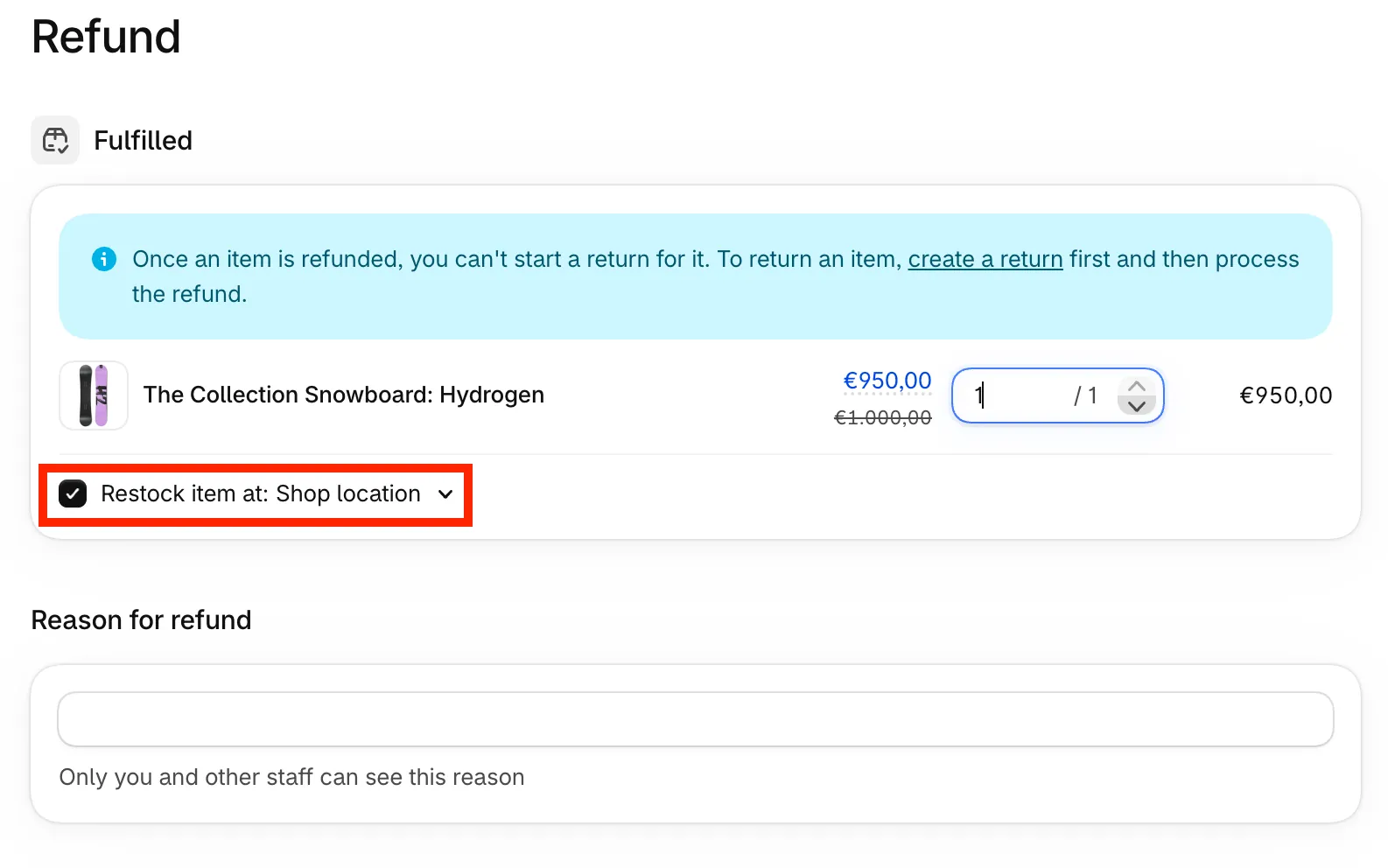
A refund pays money back to the customer. When you refund items, Shopify asks per item whether to restock it, with the Restock item at checkbox, where you also pick the location.
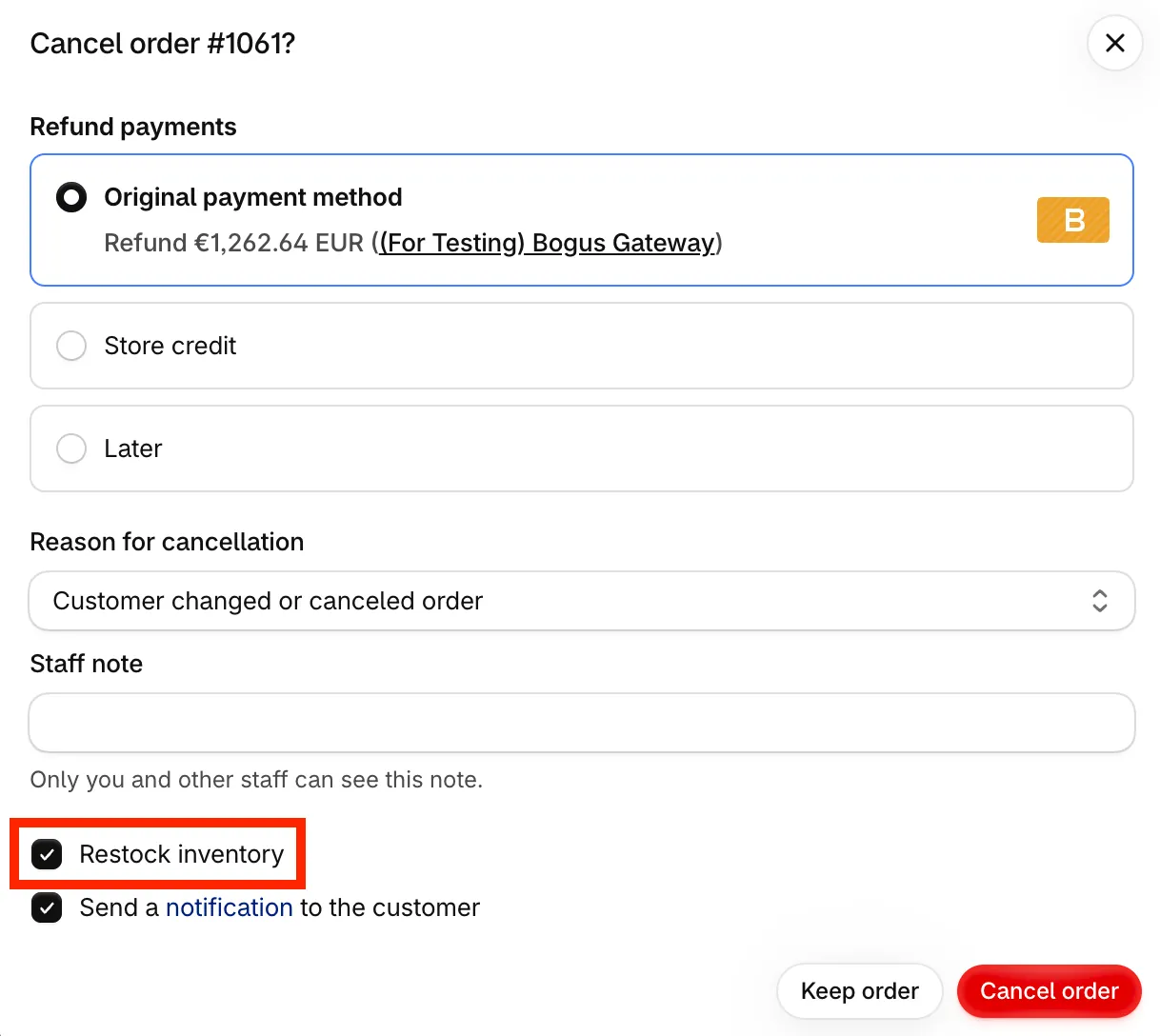
When you cancel an order, the Restock inventory checkbox in the cancel dialog decides whether the items go back into stock.
Returns
A return is Shopify's flow for goods that come back. You create the return, the customer sends the items, and when they arrive you process the return and choose per item whether it goes back into stock, with the Restock at checkbox. The refund belongs to that return.
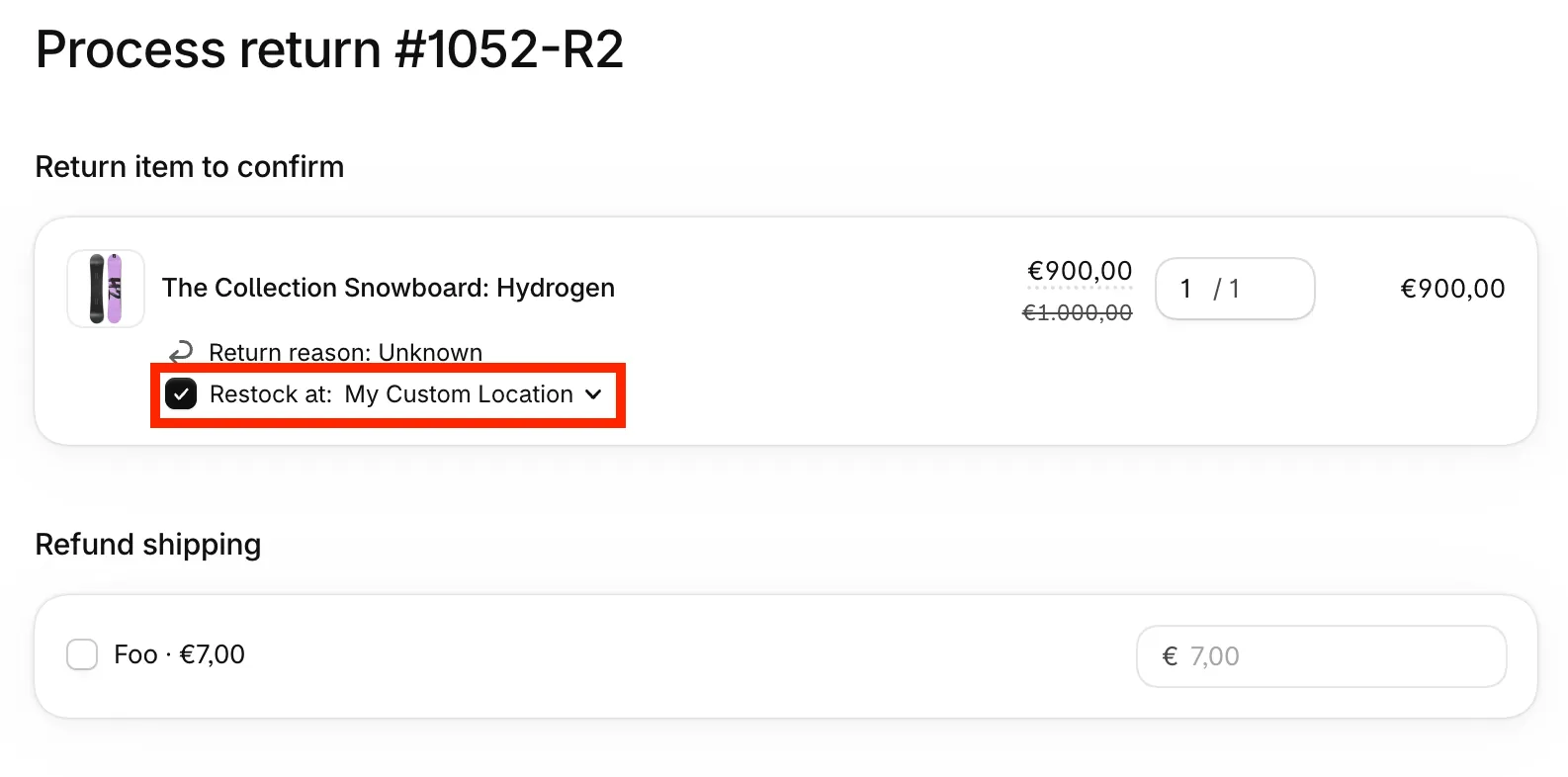
Shopify does not let you start a return for an item that is already refunded. To return an item, create the return first and then process the refund.
In both cases Shopify only knows the products are back when someone tells it. If your warehouse or a returns app handles the stock and does not update Shopify, the items are physically back but Shopify has no record of it.
What Juicy does by default
Juicy follows what Shopify records:
- Marked as restocked: the cost of the products is credited back. It shows as COGS (restocked) and raises your profit.
- Not marked as restocked: the products are treated as lost, so their cost stays in your COGS.
The credit lands on the day it happened: the day of the refund for a refund with Restock item at ticked, and the day you processed the return for a return.
If you manage your stock outside Shopify, this can make your profit look too low, because the cost of refunded or returned products stays in your numbers although the goods are back on your shelf.
The settings
Open Settings > General and find the Refunds and returns card. There are three checkboxes. Each one only applies to items that were not marked as restocked in Shopify.
Count refunded items that were never shipped as restocked
Use this when you cancel or refund orders before they ship, for example when a supplier is short or a customer cancels. Items that never left your warehouse are credited back on the day of the refund. Refunds of items that did ship keep their cost.
Count returned items as restocked
Use this when your warehouse receives returns without updating Shopify. For a refund that belongs to a return, the cost is credited back on the day the return is closed in Shopify. A return that is still open is not counted yet, because the goods may not have arrived.
Items you explicitly mark as not restocked on a return in Shopify always keep their cost.
Count all refunded items as restocked
Use this when refunded items normally go back into your stock, or your supplier credits you for them, and there is no return in Shopify behind the refund. Every refunded item is credited back on the day of the refund, shipped or not. This includes everything the first setting covers, so you do not need both.
Be careful with this one: if you refund a customer who keeps the product, for example as a goodwill gesture or for a damaged parcel, the cost is credited back too, although the goods are gone.
Which setting fits?
| Your situation | Setting |
|---|---|
| Orders are cancelled or refunded before they ship | Count refunded items that were never shipped as restocked |
| Customers return shipped goods through a return in Shopify, and your warehouse receives them | Count returned items as restocked |
| You refund shipped goods without a return in Shopify, and the goods come back or the supplier credits you | Count all refunded items as restocked |
You can combine the second and third setting to cover both cases.
A worked example
A customer buys one product that costs you $20 and pays $60. The order ships, then the customer returns the product and you refund $60.
| Setting | COGS on the order | Profit on the order |
|---|---|---|
| Nothing recorded as restocked in Shopify | $20 | −$20 |
| Marked as restocked in Shopify | $0 | $0 |
| Not marked in Shopify, setting “Count returned items as restocked” on, return closed | $0 | $0 |
Without a restock the product cost stays, so the order shows a loss of the product cost (and any shipping and payment costs on top).
After you turn a setting on
Juicy recalculates your existing orders with the new setting. This can take a while if you have many orders, and your numbers will change on the days the refunds and returns happened, so past periods can move. Your stock in Shopify is not changed in any way. These settings only change how your profit is calculated.
Frequently asked questions
Do these settings change my stock in Shopify?
No. They only change how Juicy calculates cost of goods and profit.
Why is a recent return not counted yet?
With Count returned items as restocked, only closed returns are counted. Close the return in Shopify once the items are received and it shows up.
I already tick “Restock item at” for every refund. Do I need these settings?
No. Items marked as restocked in Shopify are always credited back. The settings are for the items you do not mark.
Where do I see the credited cost?
It is the COGS (restocked) metric. On an order, open the order details to see it on the day the items came back.
Still stuck? Email [email protected] and we'll help you with refunds and returns.